


Phoneline+ is the provider we use for your VoIP service. It works over your broadband connection, offering a reliable and flexible way to stay connected, whether at home or on the go.
VoIP stands for Voice over Internet Protocol. It’s a modern way to make phone calls using your internet connection instead of traditional phone lines that use copper lines and will be switched off by 2027.
I need help with...
How it works
When you speak into your phone, VoIP converts your voice into digital signals.
These signals are sent over the internet to the person you’re calling.
On their end, the signals are converted back into sound, just like a regular phone call.
It’s reliable, cost-effective, and packed with features like voicemail, call forwarding, and more all delivered through your broadband connection.
What Phoneline+ options do you offer?
We offer three flexible PhoneLine+ packages to suit your needs:
PhoneLine+ App Only
Use our service through the PhoneLine+ app, available on iOS, Android, and Windows.
PhoneLine+ with ATA (Analogue Telephone Adapter)
Keep using your existing analogue handsets by connecting them via an ATA device.
PhoneLine+ with Handset
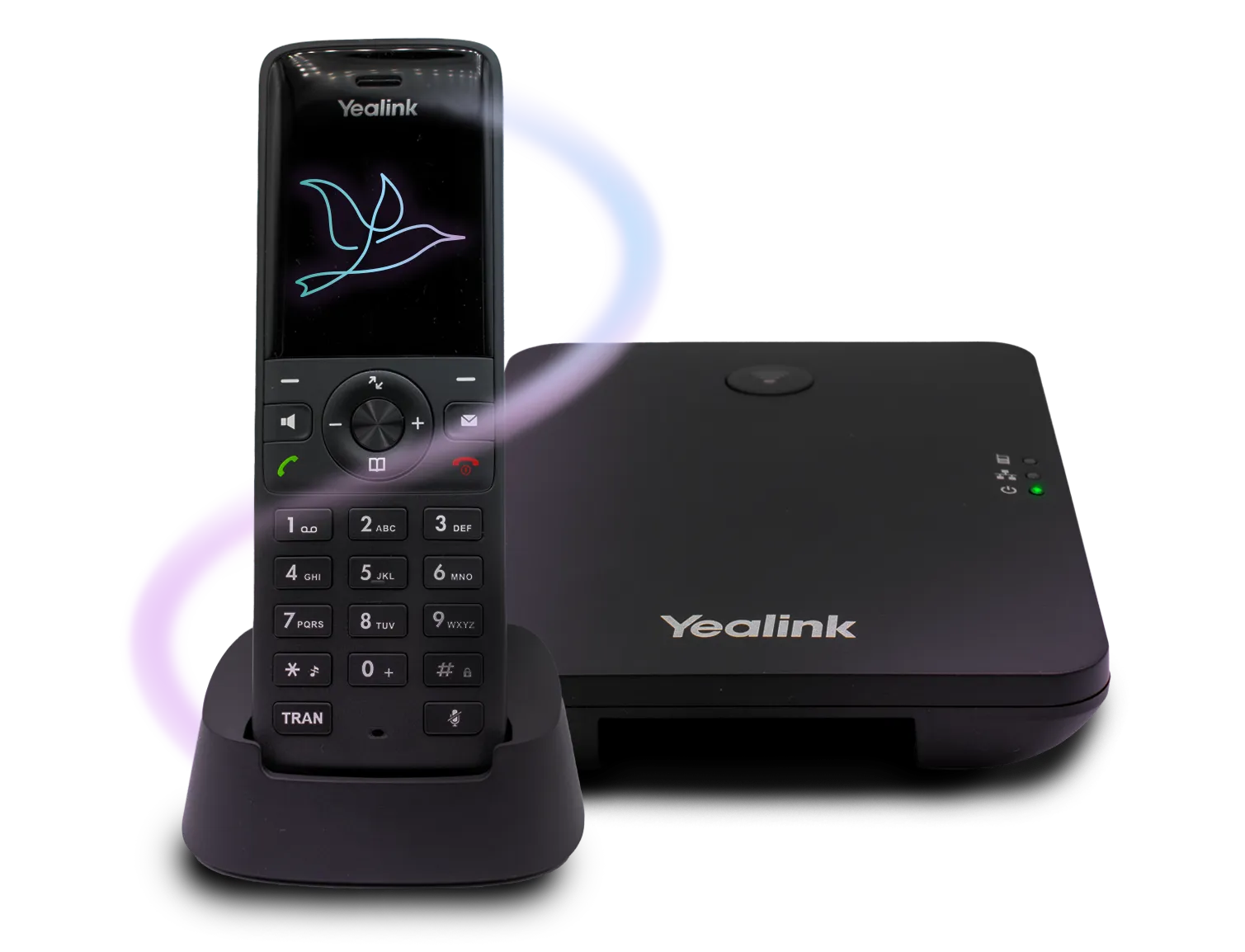
Get a brand-new cordless phone included: the Yealink W73P DECT handset with base station.
Unsure which option is best for you?
Contact our sales team who can find the best fit for you on 0800 0699906
Unlimited Calls to UK, Australia, New Zealand, USA, Canada and The Republic of Ireland and great value calls to other destinations.
| Term | Definition |
| NGCS | Non-geographic call services’. This is when someone calls a premium rate number in the UK, e.g. an 0845 number or an 09 number. |
| Per Unit | Charges are costs per minute |
| Per Event | Charges are per call |
| Service Start Charge | At what point in the call the service charge is incurred (usually either at second 1 or second 61 of the call). |
You can buy up to 5 handsets with us. If upon using your service, you think you need more handsets please contact our sales team for more information on 0800 0699906
Yes! In most cases, you can keep your current phone number when switching to PhoneLine+ and as long as we have a signed LOA (Letter of Authority) from you.
To make sure you’re not without a phone line while your number is being transferred, we’ll issue you a temporary number that you can use straight away. Once the porting is complete, your original number will be restored and ready to use.
If you have any questions or concerns about keeping your number, just reach out to your one of our Sales Agents who can explain the process.
You won’t be able to use your existing VoIP phone with our service. Our adapter is designed for analogue devices only. We would recommend purchasing our Yealink handset if you want a physical phone.
Please note: We can’t guarantee that every handset is compatible with our service.
Need help setting this up? Please see our Phoneline+ User Guide
In the next few years traditional landlines (known as PSTN or copper) will be switched off. After this point, all phone lines will be powered by Voice over Internet Protocol (VoIP) using digital connectivity.
To keep your landline, phone number and handset working you’ll need to switch to a digital service before the cut-off date.
For more information take a look at our Copper Switch Off page.
What features are included with Phoneline+?
Phoneline+ comes packed with useful features to make your calling experience simple, flexible, and reliable.
Here’s what you get:
Voicemail
Never miss a message,
even when you’re unavailable.
Caller ID
See who’s calling
before you pick up.
Call Forwarding
Redirect calls to another number when you’re away.
Call Blocking
Stop unwanted
or nuisance calls.
Unlimited Calls
to UK, Australia, New Zealand, USA, Canada and The Republic of Ireland and great value calls to other destinations.
Multi-device access
Use PhoneLine+ on your mobile,
tablet, or computer via our app.
Contacts & Call History
Easily manage your calls and keep track of who you’ve spoken to.
Basic service features:
*Number porting on Phonline+ is only available for single line, geographic numbers (A standard landline).
Porting via IPEX and porting API is not currently supported.
Contacts & Call Management
CLI (Calling Line Identification) is a feature that shows the caller’s phone number (and sometimes name) to the recipient of the call. It’s commonly known as caller ID. *Only available option for showing caller ID (CLI) is to withhold.
Number porting and activation
You may wish to transfer your phone number (or numbers) from one service provider to another. This is called a number port.
If your current number can be ported successfully, then you won’t need to choose a new one when you sign up for PhoneLine+. This saves you the hassle of informing your anyone of any number changes. Your existing number can be ported to PhoneLine+, but only if it is geographic and single line.
No, we don’t charge for you to move your existing numbers over to us.
On the day your Broadband service is activated, we’ll place an order for your phone equipment. It will be delivered to you within 2–3 working days. Please see our Phoneline+ Guide for step-by-step instructions for help plugging everything in and setting up your new phone service.
Yes! If you’ve requested to port your existing number, we’ll provide you with a temporary number. You’ll be able to make and receive calls straight away as long as your equipment is plugged in and set up correctly.
To help with setup, please use our step-by-step Phoneline+ Guide, which walks you through everything you need to get started smoothly.
If we have already received your Letter of Authority (LOA) before activation, we’ll request the port on the same day as your fibre installation. The porting process can take up to 30 days, depending on how long your current provider takes to release the number.
We’ll keep you informed via email to let you know your expected port date. The date we give you is only a provisional date as we are reliant on third party acceptance.
No worries! If we don’t have your LOA on activation day, our team will send you an email with a secure YotiSign link to complete it.
Please note: We cannot port your existing number until we have your LOA document signed. In addition, please be made aware that Wildanet have 30 days from the date you cancel your old contract to port your number. If we do not receive your signed LOA within this time, we cannot guarantee your existing number can be kept.
If you consent to the OTS process, your current phone number may be disconnected when your Wildanet service is installed and the switch is activated. This could mean you temporarily lose access to your landline until the number transfer (porting) is successfully completed.
If you have any questions or concerns about the OTS process, please contact your original sales agent or reach out to our Customer Care team.
Receiving calls (App)
If you are not able to receive calls, please check the following:
- You have a number currently assigned to you in “Settings” “My Numbers”.

- You are labelled as ‘Active’ (Indicated by a green dot next to your avatar).

- Your chosen device or devices are ticked to “Receive Calls” in your Devices Settings.

- You have not set up a Redirect to another number, user, team or menu.
- There is not a firewall in place which may restrict calling.
- Your device is connected to the internet.
- Your out-of-hours settings do not indicate that you are unavailable.
Wrong Number | If calls are not being made from the correct number, please check the following:
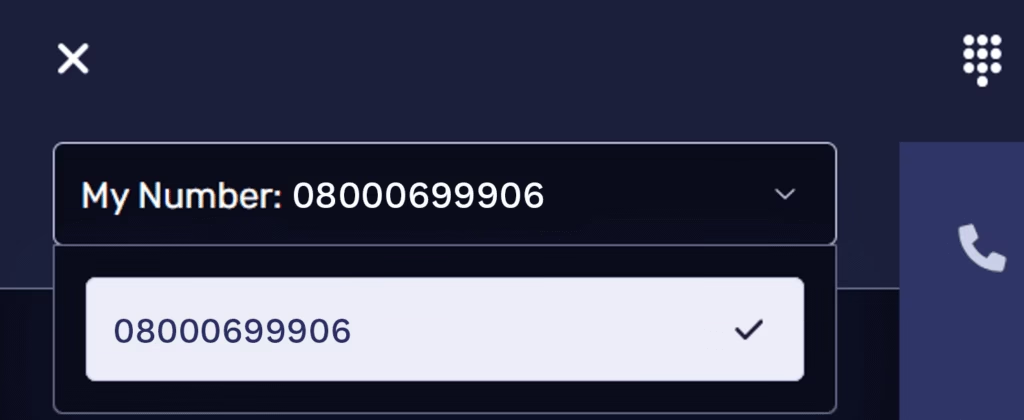
- The number at the top of your dial pad screen displays the number you wish to make the call from. If this is not the case, you can select the correct number from the drop-down list.
- Alternatively, you have selected the default number that you wish to make calls from on the ‘My Numbers’ page.
- If you do not see the number you wish to make a call from within the drop-down list available, please contact our customer care team for more information.
Voicemail
Is Voicemail included with PhoneLine+?
Yes, voicemail is included as part of your PhoneLine+ service.
If you miss a call, callers can leave a message for you to listen to at your convenience. You can access your voicemail through the PhoneLine+ app or your connected handset.
Can I customise Voicemail? (App)
To customise your voicemail message, you can record, upload, and select from your library of recordings.
- Record allows you to use your microphone/device to create a new audio track.
- Upload allows you to import an audio track, if you already have recording you wish to use. Maximum length is 60 seconds. Maximum file size is 1.5Mb.
- Library allows you to select from a list of audios shared amongst PhoneLine+ users within your company. For example, if your organisation uses a template for voicemail messages.
How do I record a Voicemail?
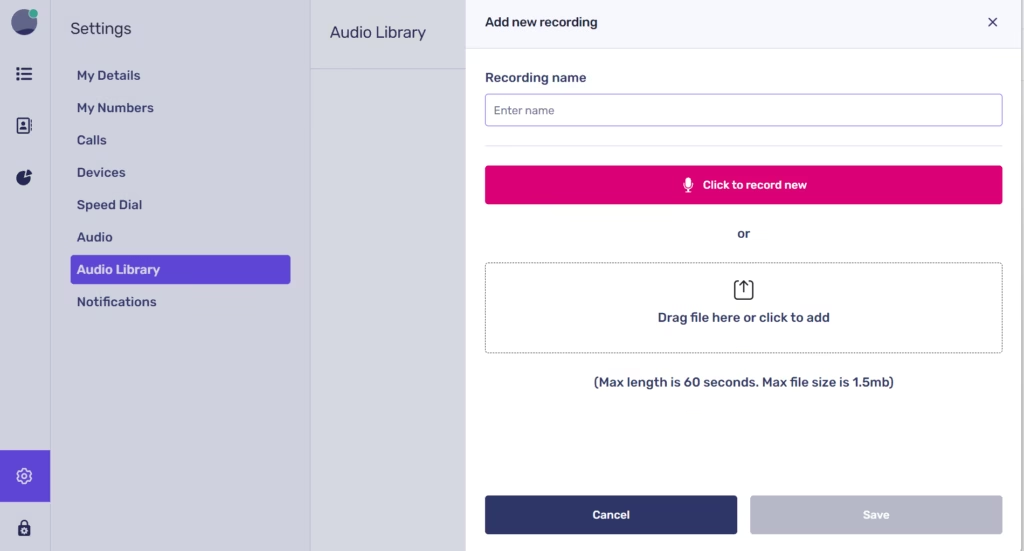
If you don’t currently have a voicemail message set, you can record one by going to Settings > Audio Library and selecting Click to record new.
Click the microphone icon to start recording using your device’s microphone and press the stop icon when you’re finished. You can listen back to your message using the play icon.
If you’re satisfied with the recording, select Save. If not, you can delete the recording and try again.
All previously recorded messages will appear in your audio library. You can remove any recording at any time by selecting it and clicking Remove.
How do I listen to my Voicemails? (Desktop)
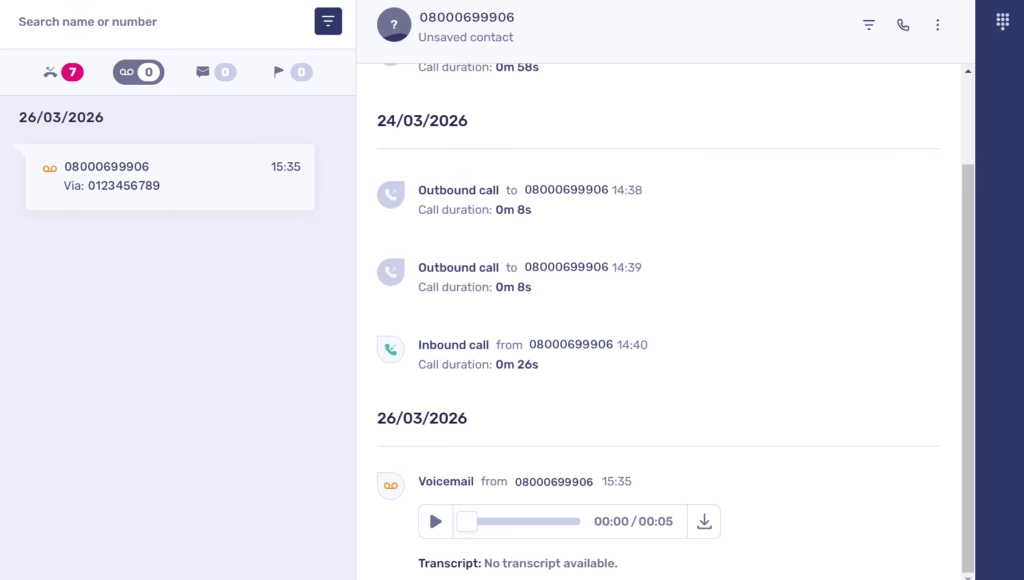
If you receive a voicemail, it will appear in the activity feed on your home page. You can also filter your Home tab to show only voicemails.
To listen to the message, select the call marked with the voicemail icon. You’ll then see an option to play the voicemail recording.
If you want to save a copy, click the download icon to download the voicemail.
How do I listen to my Voicemails? (Mobile)
When a new voicemail is left for you, a red notification badge will appear on your activity feed next to the voicemail icon.
Select the Voicemail menu to view the caller’s number and access the message. From here, you can press Play to listen.
Press and hold on the voicemail to open additional options such as Copy Number, Block Number, Download Recording, Return Call, Delete, Create New Contact, or Add to Existing Contact.
How do I listen to my Voicemails? (Yealink Handset)
To access your voicemails directly from the handset, press the Message key (Envelope icon) on the right‑hand side where the message icon appears.
Alternatively, press the OK key to open the main menu (round middle button), then navigate to Voicemail > Play Message. Choose the line you want, select it, and the handset will automatically dial the voicemail code.
Voicemail troubleshooting (Mobile)
If you are not currently receiving Voicemails, please check the following:
- You have a number assigned to you.
- Your Call Settings are set to ‘Ask to leave a voicemail’.
Settings for how calls should be answered ‘Out of hours’ do not conflict with your call settings.
If you are not receiving voicemail notifications via email and would like to be please:
1. Check to see if your mailbox server is flagging PhoneLine+ emails as spam.
2. Make sure you have Settings > Notifications turned on for New Voicemails.
Common FAQs
Still can’t find what you’re looking for? Find answers to some of the most commonly asked questions
Grandstream Adapter
Please reboot your adapter and check the below steps are completed. If all the below have been attempted already, please call 0800 069 9906 to run further diagnostics.
- Make sure one end of the blue ethernet cable is plugged into the blue port on Grandstream Adapter and the other end plugged into the LAN port on router.
- Insert an RJ11 telephone cable into the phone port and connect the other end of the telephone cable to your analogue telephone
- Plug the power cable into the type C socket and plug the other end into the wall.
- If all are plugged in correctly Grandstream will show 3 blue lights (this may take up to 5 minutes to settle).
If no blue light shows on the globe:
Your adapter is not connected to the internet, check the ethernet cable and router connection.
If no blue light on phone:
Check the cables are secured, refer to the user guide of your analogue phone.
If no lights at all:
No power is being provided. Try using an alternative power socket, check this is plugged in and switched on.
If all the above have been attempted already, please call 0800 0699906 to run further diagnostics.
Yealink Phone
Please reboot your phone first to check your phone is not working.
- Connect the Ethernet cable into the internet socket on base station & the other end into the router LAN port.
- Plug the power cable into the socket on base station and into wall.
- You should now have 3 green lights on the base station.
If no green light is showing on your phone
Press and hold the middle button on the base station which will search and pair the phone to the base station.
If no internet light
Check the ethernet cable is plugged in and in the LAN port of the router and the router itself is working.
If no lights at all
No power is being provided, try using alternative power socket, check this is plugged in and switched on.
If the Yealink is not pairing
Reboot the system and reset the phone in the handset settings.
Battery Back Up & VoIP
Although some lifeline devices have already been updated to work using VoIP, others are not compatible and will not work. Please check for each lifeline device and service you use. If you rely on a lifeline service that is not VoIP compatible we are unable to offer you our service at this time.
No. VoIP services are delivered over the internet and require power and connectivity. If there is a power cut or your internet fails, you will not be able to make calls, including emergency calls.
You should have an alternative method, such as a mobile phone, as a backup for emergency calls.
No. Text relay services are not supported by Phoneline+. If you rely on these services our VoIP service will not be suitable for you.
You won’t be able to use your existing VoIP phone with our service. Our adapter is designed for analogue devices only. We would recommend purchasing our Yealink handset if you want a physical phone.