

Why Speeds Go Up and Down
Busy Network Times
When lots of people in your area are online at once, speeds can naturally dip. This is because multiple households sharing the same local infrastructure place higher demand on the network, creating congestion and slower performance for everyone.
Distance From the Cabinet or Exchange
If you’re on older broadband technology, how far your home is from the cabinet or exchange can have a big impact on speed. The signal weakens as it travels, so homes that are further away often see slower download and upload performance. This is especially common in rural locations where infrastructure is more spread out.
WiFi Obstacles and Interference
Your broadband speed may be fine at the router, but WiFi performance can drop if the signal has to pass through thick walls, large appliances, metal surfaces, or electronics like microwaves. The further your device is from the router, the weaker the connection becomes, which can make speeds appear inconsistent.
How to Improve Your Broadband Performance
Place Your Router in the Best Spot
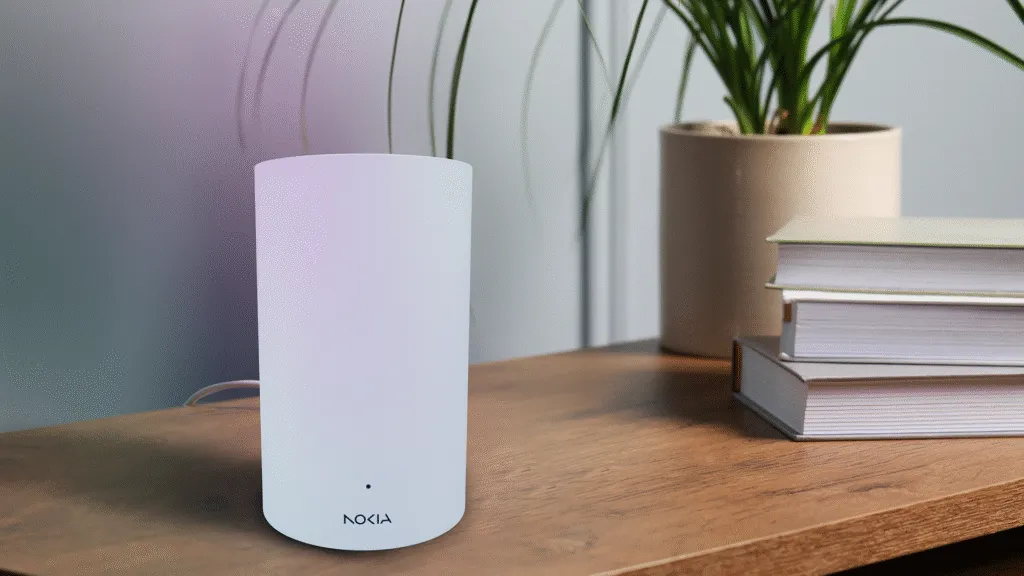
Router placement has a huge effect on WiFi strength. For better coverage, aim to:
- Position it centrally in your home
- Keep it away from thick walls, metal surfaces, and electronic devices
- Place it off the floor and in an open space
Use a Wired Connection for Key Tasks
Ethernet connections offer the most stable and accurate speeds. If you’re gaming, on a work call, or downloading large files, plug in directly to the router for a smoother experience.
Reduce the Load on Your Network
Multiple devices using the internet at the same time can slow things down, especially during activities like streaming or big downloads. Limiting active devices or prioritising essential tasks can help.

How Do I Test The Speed Of My Broadband?
Step 1: Use the Nokia App to Test Your Speed
The Nokia WiFi app (available on Android and iOS) features a speed test that accurately measures your upload and download speeds in less than a minute. It directly tests your router’s performance for the most dependable results. To test your speed, find the ‘Internet Speed’ section on the app’s home screen and tap’ New speed test. ‘ This method offers a more reliable measurement of your hub’s speeds than some third-party tools.
Step 2: Prepare Your Setup
To get accurate results:
- Use a wired connection where possible; WiFi distance and interference can distort results.
- Close all apps and disconnect other devices to avoid background usage affecting the test.
- Test at different times (including peak and off-peak hours) to get an average picture of your true speed.
Step 3: Understand Your Results
Your test will show download, upload, and ping speeds. A significant drop, especially on a wired test, may indicate a problem that needs attention.
Extra Tips for Smoother, More Consistent Speeds
Once you’ve investigated the cause and run a proper test, try the following to improve performance:
- Place your router in an open, central space away from interference.
- Use Ethernet for tasks where stability matters.
- Disconnect devices you’re not using, especially those streaming or downloading in the background.
- If speeds remain low after multiple wired tests, record your results (time, download/upload/ping) and contact your broadband provider.
Speed changes are often normal, but proper testing is the key to understanding whether an issue lies with your home setup or the broadband service itself. By running tests via a wired connection, reducing WiFi interference, and comparing your results to your package speeds, you’ll get a clearer picture of how your broadband is performing.
Knowing how to test the speed of your broadband correctly can make all the difference, and may be the first step toward getting the performance you expect.