

Connecting your phone to your fibre broadband is usually quick and simple. If you experience slow speeds, signal dropouts, or connection problems, a few easy checks can help resolve the issue. This guide explains how to connect your phone to a fibre router using a Nokia Wildanet router, outlines common troubleshooting steps, and highlights available support options if you need further assistance.
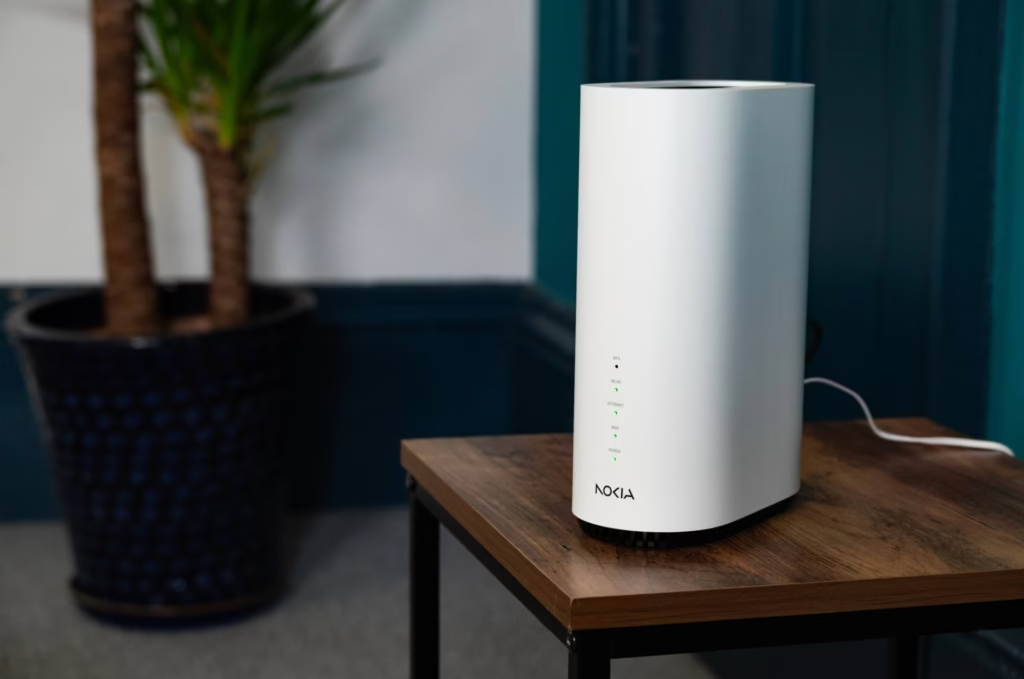
Step-by-Step: How to Connect Your Phone
Follow these steps to get your device online quickly:
1. Power on your Wildanet router
Make sure your router is switched on and that the broadband status light is solid or steady. A flashing or red light may indicate a connection issue.
2. Open Wi-Fi settings on your phone
iPhone: Open Settings, then tap Wi-Fi
Android: Open Settings, tap Network & Internet, then select Wi-Fi
3. Select your Wi-Fi network (SSID)
Your network name is usually printed on your Wildanet router or available inside the Nokia WiFi mobile app.
4. Enter your Wi-Fi password
The default password is located on the router label unless you have changed it using the Nokia WiFi app.
5. Connect and test your connection
Once connected, try opening a website or streaming a video to confirm your phone can access the internet successfully. These steps should help you connect your phone to a fibre router without difficulty.
Tips to Connect Your Phone to a Fibre Router Using Dual-Band Wi-Fi
Wildanet routers typically broadcast two Wi-Fi bands:
- 2.4GHz: Covers a greater range, ideal for devices further from the router
- 5GHz: Faster speeds, best for close-range devices
Some Wildanet routers use a ‘smart’ network combining both bands, allowing your phone to automatically pick the optimal connection.
Troubleshooting Common Issues
Network not visible?
- Check that the router is on.
- Restart the router or your phone.
- Move closer to the router or Wi-Fi booster (if using mesh coverage).
Connected but no internet?
- Reboot the router.
- Make sure the broadband light is steady.
- Confirm your Wi-Fi password is correct.
Slow or unstable connection?
- Check the distance from your router and move your device closer.
- Switch between 2.4GHz and 5GHz.
- Avoid physical obstacles or interference from appliances, for example, thick granite walls or foil lined insulation can affect your connection.
- Use a WiFi Booster to extend coverage in larger homes.
Performing these checks often resolves problems when trying to connect your phone to a fibre router and improves overall Wi-Fi performance.
Security Tips
To keep your Wildanet Wi-Fi safe:
- Use WPA2 or WPA3 encryption (Some older devices may not work with WPA3).
- Keep your Router password safe and be careful who you share this with.
- Use the guest network feature for visitors to your home.
- Use the parental controls within the Nokia app.
These steps protect your devices and personal data from unauthorised access.
Need Extra Help?
If you’ve followed these steps, checked the information on our Customer Hub and still cannot connect your phone to a fibre router. Our Wildanet support team can help with:
- Router setup and configuration
- Line activation and troubleshooting
- Mesh Wi-Fi setup
Our fibre and expert support team can remotely check your connection or guide you through more advanced fixes.
Wildanet Fibre and Expert Support
Learning how to connect your phone to a fibre router is quick, but understanding dual-band networks, basic troubleshooting, and Wi-Fi security ensures a smoother experience.